Don't give your parents a streaming stick without changing these settings first
By Google News TV ·
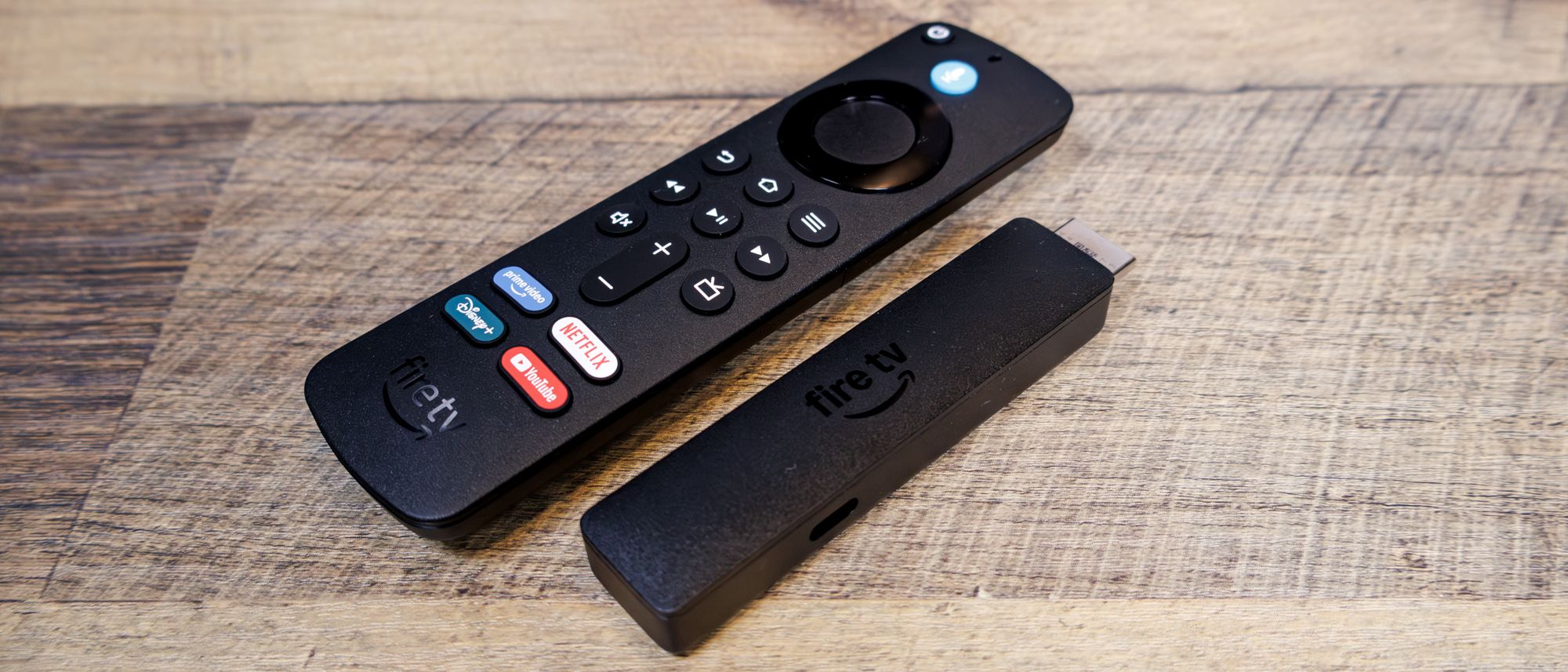
If you've ever been in a situation where your parents or grandparents bought a new piece of tech without knowing how to use it, you'll know the self-inflicted challenges that come with gifting a streaming stick to an older, less tech-savvy relative.
It's a thoughtful purchase, of course, since streaming is now the default way to enjoy your favorite movies and shows, but often the people who set up these devices didn't have your mother in mind when they programmed the settings.
The hardware is far less important than the 30 minutes you spend with it before wrapping, even if it's worth being choosy now that prices have crept up (Amazon raised the price of every Fire Stick in August, with Roku following suit), and this is our guide to getting the settings right before handing it over at Christmas.
For simplicity, I'll mostly refer to the hypothetical recipient as a 'parent', though many of us have tech-savvy mothers and fathers (and grandparents, aunts, and uncles) who cope just fine.
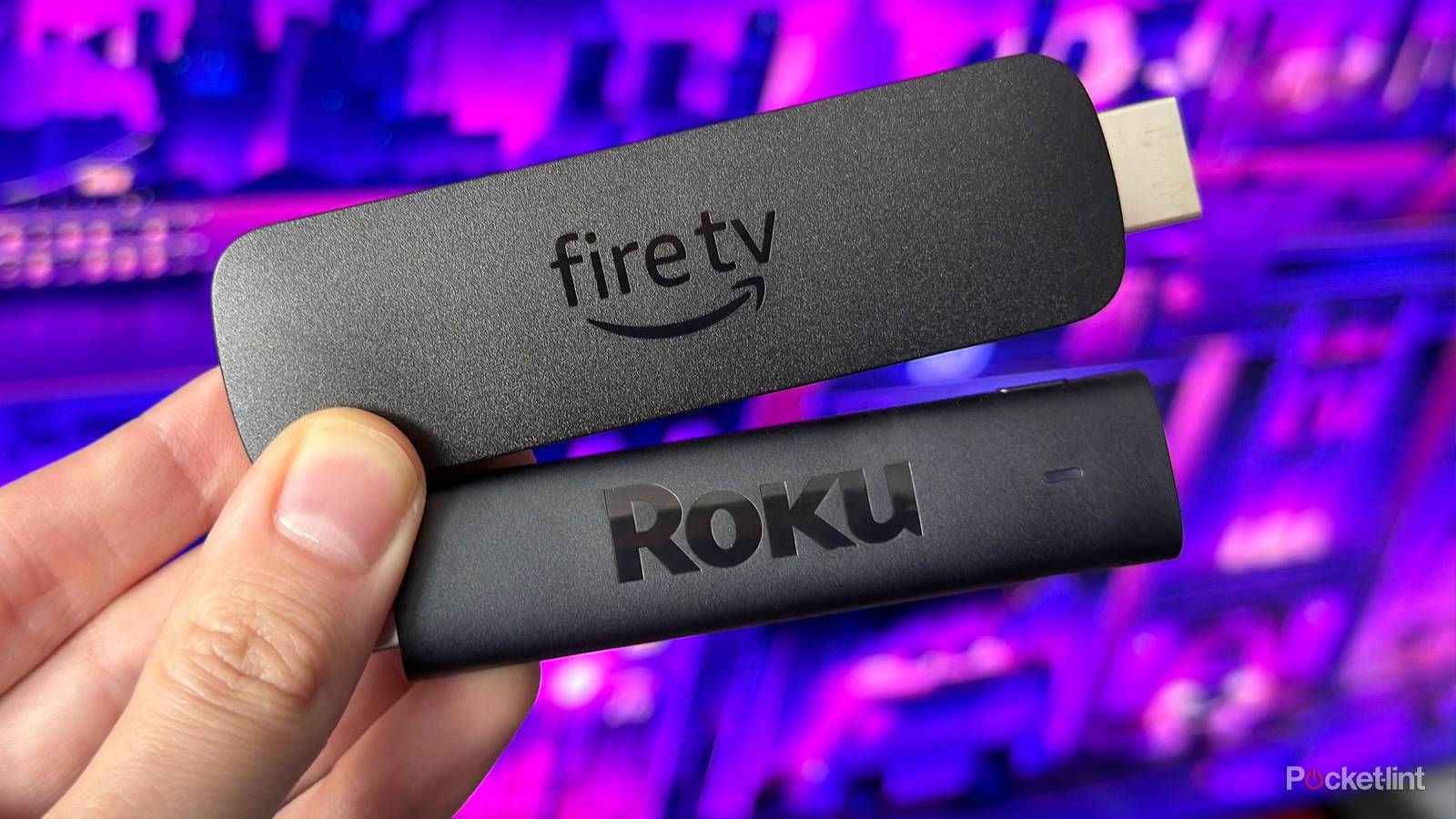
Roku is the most tempting option here, since it's been the default choice for less techy relatives for years, with a home screen that remains super-plain and easy to navigate. Roku's accessibility page, however, says text resizing and interface customization aren't available on its players or TVs, which is a real limitation if your relative already needs glasses to read what's on screen.
Amazon has recently gone the other way, with its new Adaptive Display setting arriving over the summer, letting you enlarge text, icons, and menus across the Fire TV home screen and settings (at two levels, Large and Larger) without affecting posters and artwork. It's only available on the two Fire Sticks running Amazon's newer Vega OS, though, which right now means the Fire TV Stick HD and Fire TV Stick 4K Select.
It's the main reason I'd buy the $39.99 Fire TV Stick HD, or the $49.99 4K Select if their TV is 4K. As we pointed out when Adaptive Display was first announced, Amazon has been pretty reliable on accessibility.
Vega OS has its limits, of course, since apps only come from the Amazon Appstore (and it's thinner than on older Fire Sticks), but that won't bother anyone who just wants Netflix and YouTube. To be safe, check with the recipient which apps they use the most.
Equally, if they're used to Roku and small text isn't an issue, I'd still go with the Roku Streaming Stick Plus, arguably the only Roku worth buying right now at $60. Meanwhile, Google TV has the cleanest home screen of the lot thanks to Apps-only mode, though the $149.99 Google TV Streamer is a harder sell as a gift.
In my experience, most "I can't get it to work" calls are really just the TV being on the wrong input, and HDMI-CEC fixes that by letting the stick turn on the TV, switch to the correct input, and handle the volume. As we've argued before, HDMI-CEC is perhaps the most important TV setting most of us aren't using.
Of course, you need to switch it on at both ends. On the TV, it'll be tucked away under a brand name like Anynet+ on Samsung, SimLink on LG, or Bravia Sync on Sony.
On the Fire TV, meanwhile, go to Settings > Display & Sounds and turn on HDMI CEC Device Control, then go to Settings > Equipment Control to get the remote's power and volume to work with the TV. On a Roku, it's Settings > System > Control other devices (CEC) before turning on 1-touch play.
It goes without saying you should test everything properly by unplugging the TV and checking that one press of the…
Originally published by Google News TV