Windows 11 gets 11 notable changes this November, and two stand above the rest
By Google News Technology ·
Windows 11 is getting another substantial batch of changes in November, but after going through what's coming, two improvements stand out to me: the customizable context menu and Cloud Rebuild.
The first finally gives you control over some of the clutter that has plagued Windows 11's right-click menu, while Cloud Rebuild offers a much easier way to reinstall Windows without creating a bootable USB drive.
Those are only two of the 11 changes worth knowing about this month, which also include improvements for handheld gaming, Phone Link, accessibility, Edge performance, security, and more.
Availability will vary because Microsoft rolls many features out gradually, but here's what you should be watching for in our latest Windows 11 guide.
Here's all you need to know about the features and changes coming in November.
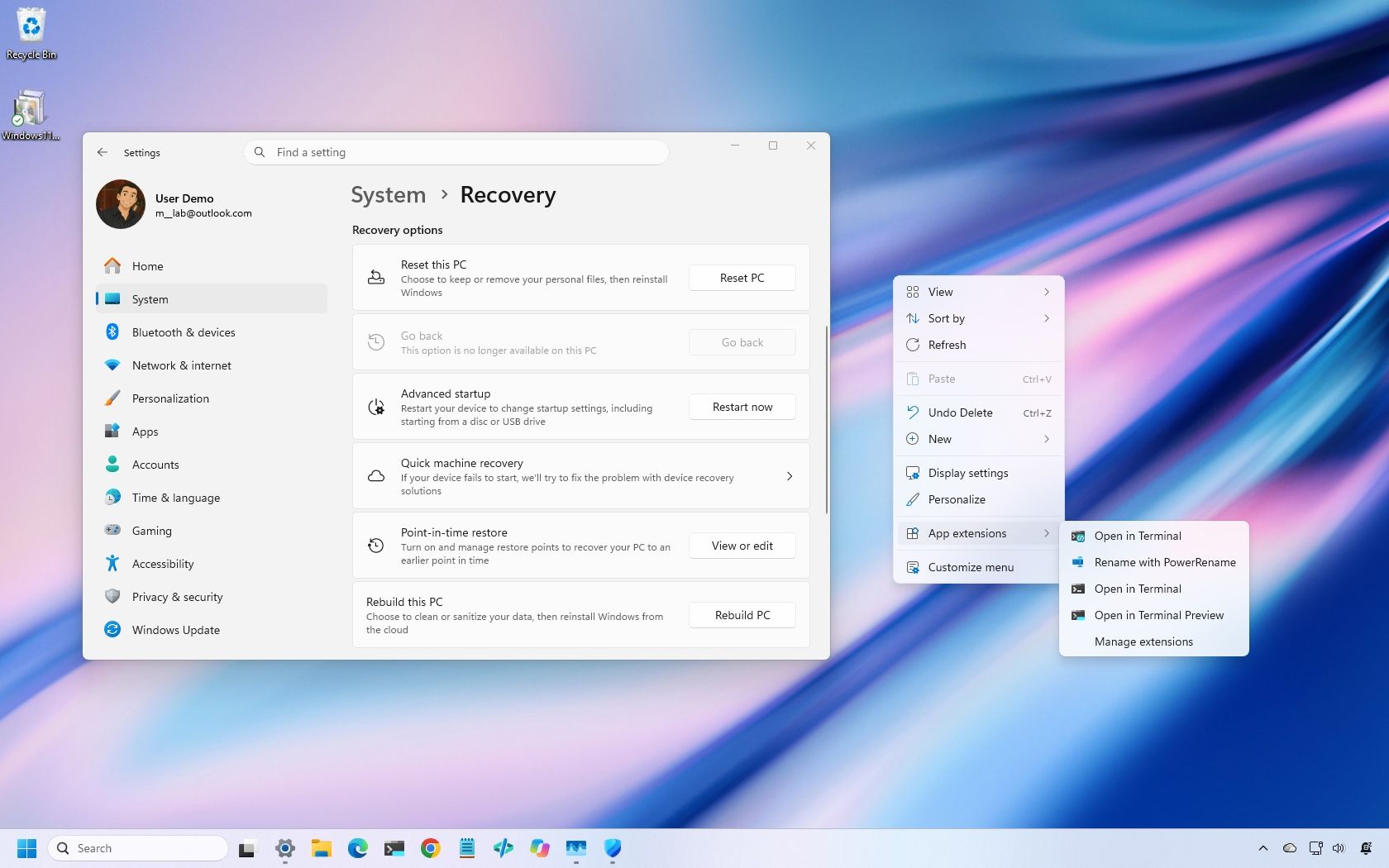
Starting with the November update, Windows 11 is getting a new context menu experience that gives you more control over the commands and app extensions that appear in the main menu.
The new menu reduces clutter and makes the experience faster by moving app extensions into a separate submenu. It also introduces a "Customize menu" option at the bottom of the interface, which opens a dedicated Settings page where you can enable or disable built-in commands, add options such as "Print" and "Send to," and control which app extensions appear in the main menu or submenu.
You can also display "Cut," "Copy," "Paste," "Rename," "Delete," and "Share" as individual commands instead of showing them in a vertical view. Windows 11 also lets you move "Properties" to the bottom of the menu as it appeared on Windows 10.
To access these options, right-click a file, folder, or the desktop and select Customize menu, or open Settings > Personalization > Context menu.
You can keep the default configuration if you prefer. Holding down "Shift" while right-clicking also reveals the legacy context menu.
The ability to customize the menu is particularly useful because it gives users more control over which commands they see without forcing everyone to use the same layout.
Microsoft is also refreshing the Gaming Task View experience in XBOX mode. The updated interface retains the familiar design but adds a navigation bar that makes it easier to access options such as "Exit to Desktop" and "Power Options" using a game controller.
It's a relatively small change, but it makes basic actions easier to navigate using a gaming controller.
The Settings app is getting a few usability refinements. The "Privacy & security" page now groups Location, Microphone, and Camera controls more clearly, making it easier to review these permissions.
Microsoft is also expanding the "Device Info" card on the "Home" page to more markets. Available to users signed in with a Microsoft account, the card provides an overview of key hardware specifications and a shortcut to the "About" page.
The "Storage" page is also getting visual changes to its temporary files section.
These aren't major additions, but they make some commonly used Settings pages easier to navigate.
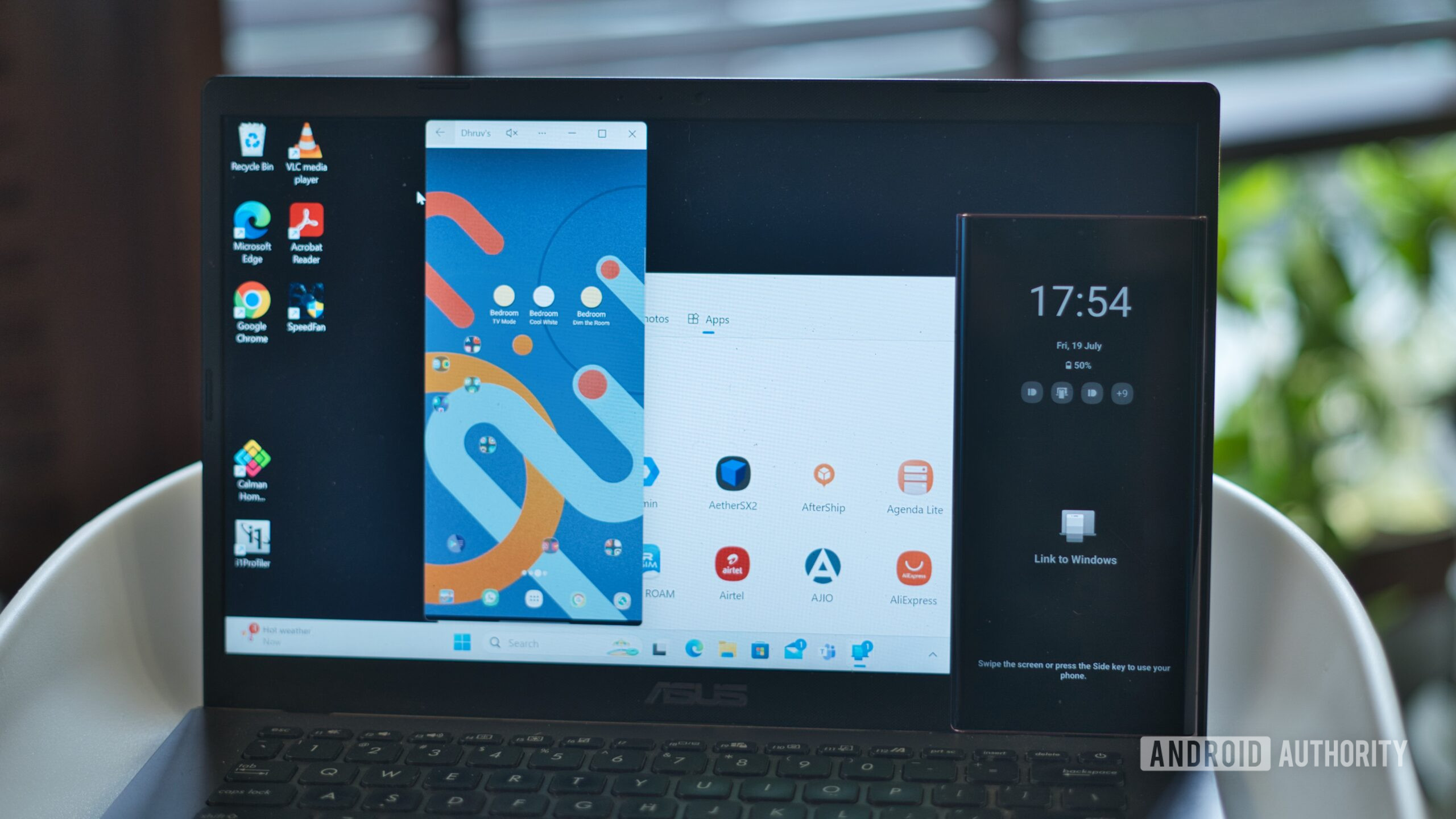
Phone Link integration is getting a small convenience improvement. When your phone is connected, you can hover over a recent message or notification in the Start menu's "Recent" section of the mobile pane to preview its contents without opening it.
It's a minor addition, but it makes checking incoming messages more convenient without opening your phone or the Phone Link app.
The Magnifier feature is…
Originally published by Google News Technology